Design your dashboard theme once, reuse it on every report
Your dashboards should look like your brand, not like a default palette. The new Theme builder lets you design a theme once and use it everywhere. Change a colour and your whole dashboard updates as you go. Save it, and reuse it on every report.
Try it in 60 seconds
- Open any project and click Theme in the top bar.
- Pick a preset: Mockko Blue, Slate, Teal, Plum, Midnight or Slate Dark. Your dashboard recolours at once.
- Click Create new theme… to make your own.
- Work through the Theme settings panel (shown below). Set the six Palette series colours, then your Sentiment colours. Next come Backgrounds & borders, then your Font.
- Click Save new theme. It now shows up under YOUR THEMES in the menu.
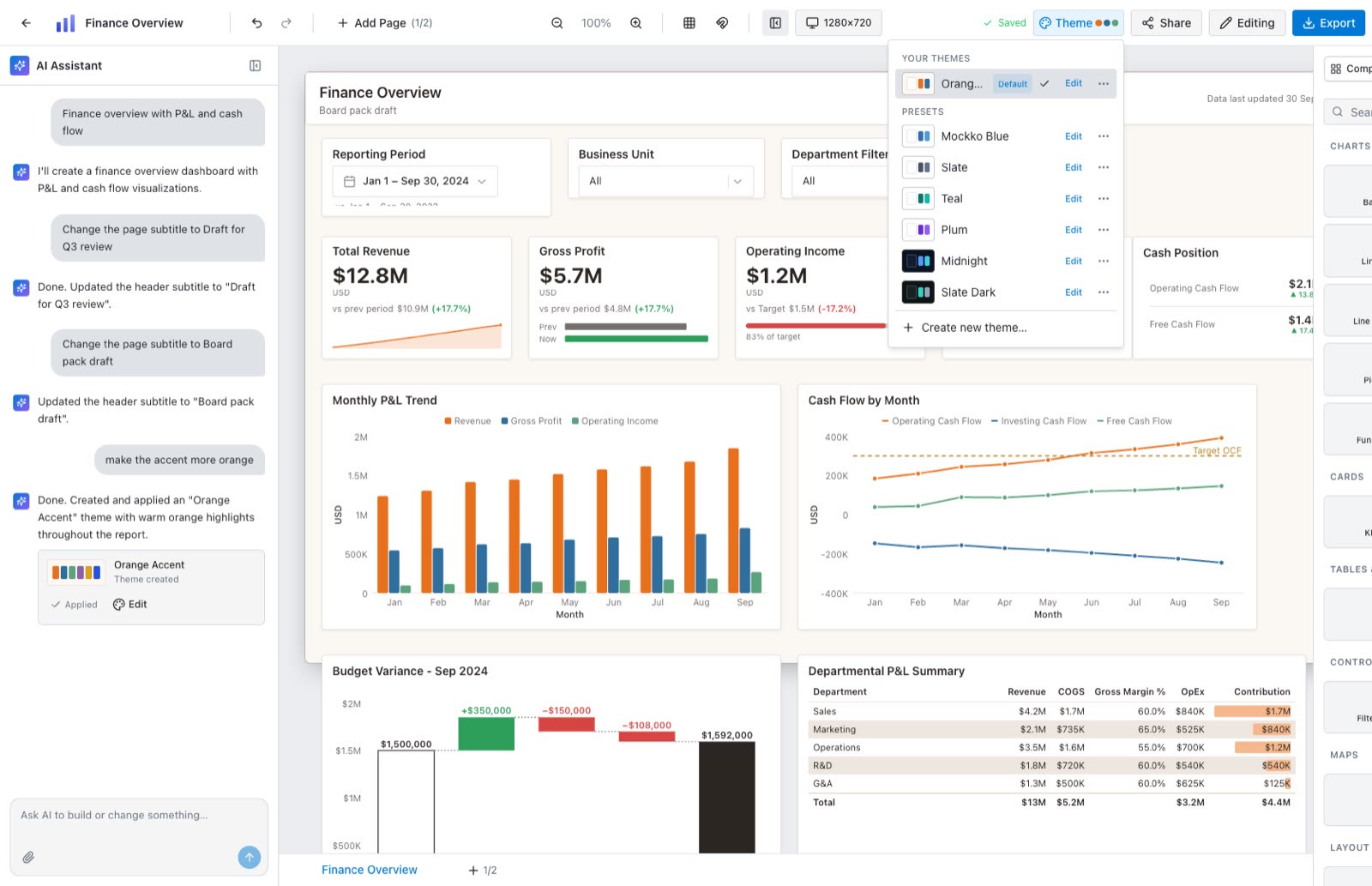
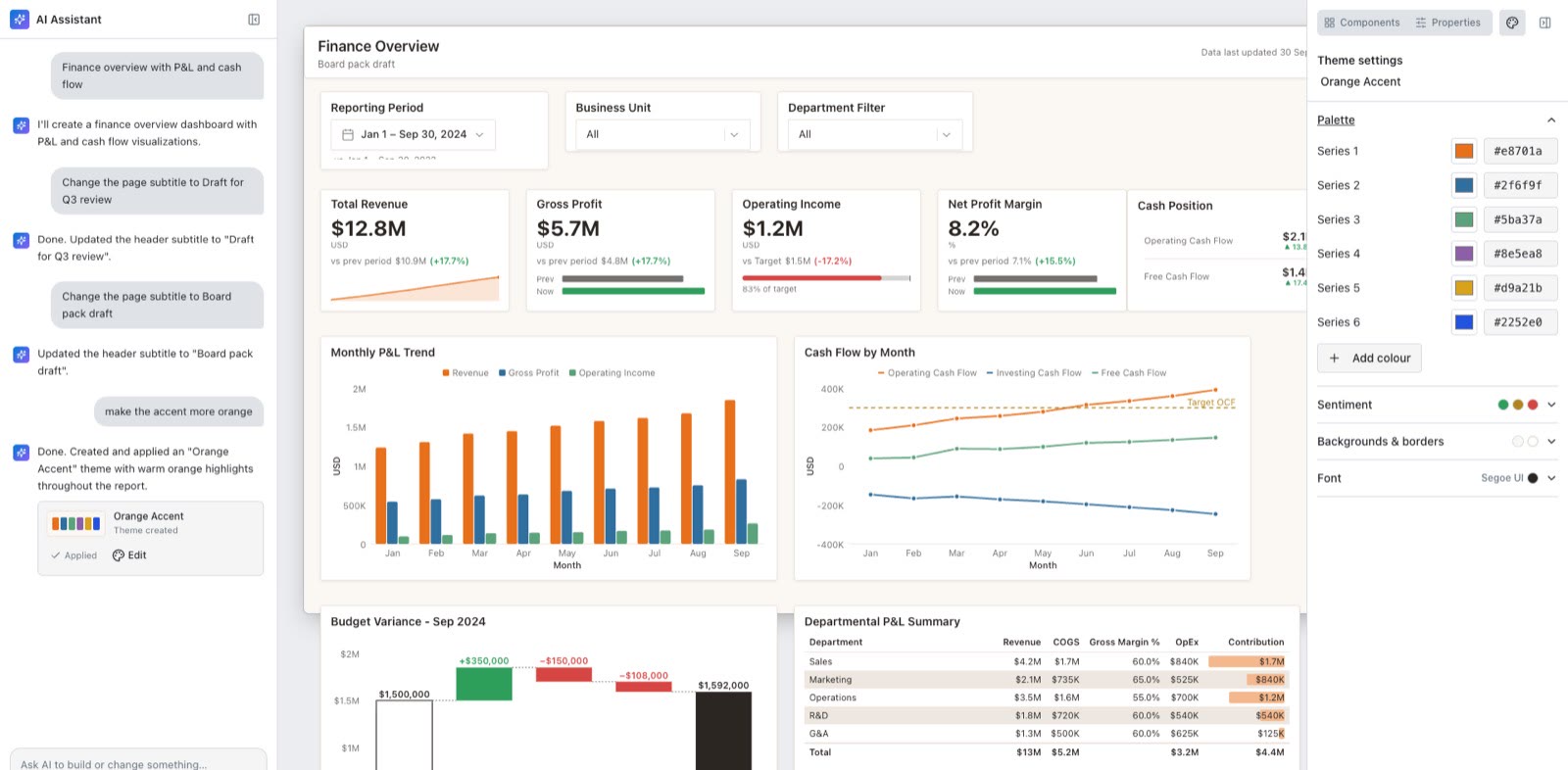
When you edit a saved theme, click Update theme to change it everywhere it’s used, or Save as new theme to make a separate copy and leave the original untouched.
Keep your themes handy
Open the … menu next to any theme to:
- Set as default, so it’s your go-to look. This works on presets too, so you can make Midnight your default without copying it first.
- Duplicate a preset or one of your own as a starting point.
- Delete the ones you no longer need.
Ask AI to tweak it
You don’t have to touch a colour picker. Ask the AI chat in plain English:
- “make the accent more orange”
- “list my themes”
- “which theme is my default?”
- “make Midnight my default”
- Or describe a whole new look and ask for a theme.
The chat can tell you which theme is your default and change it for you. Phrase it your own way, since these are just examples.
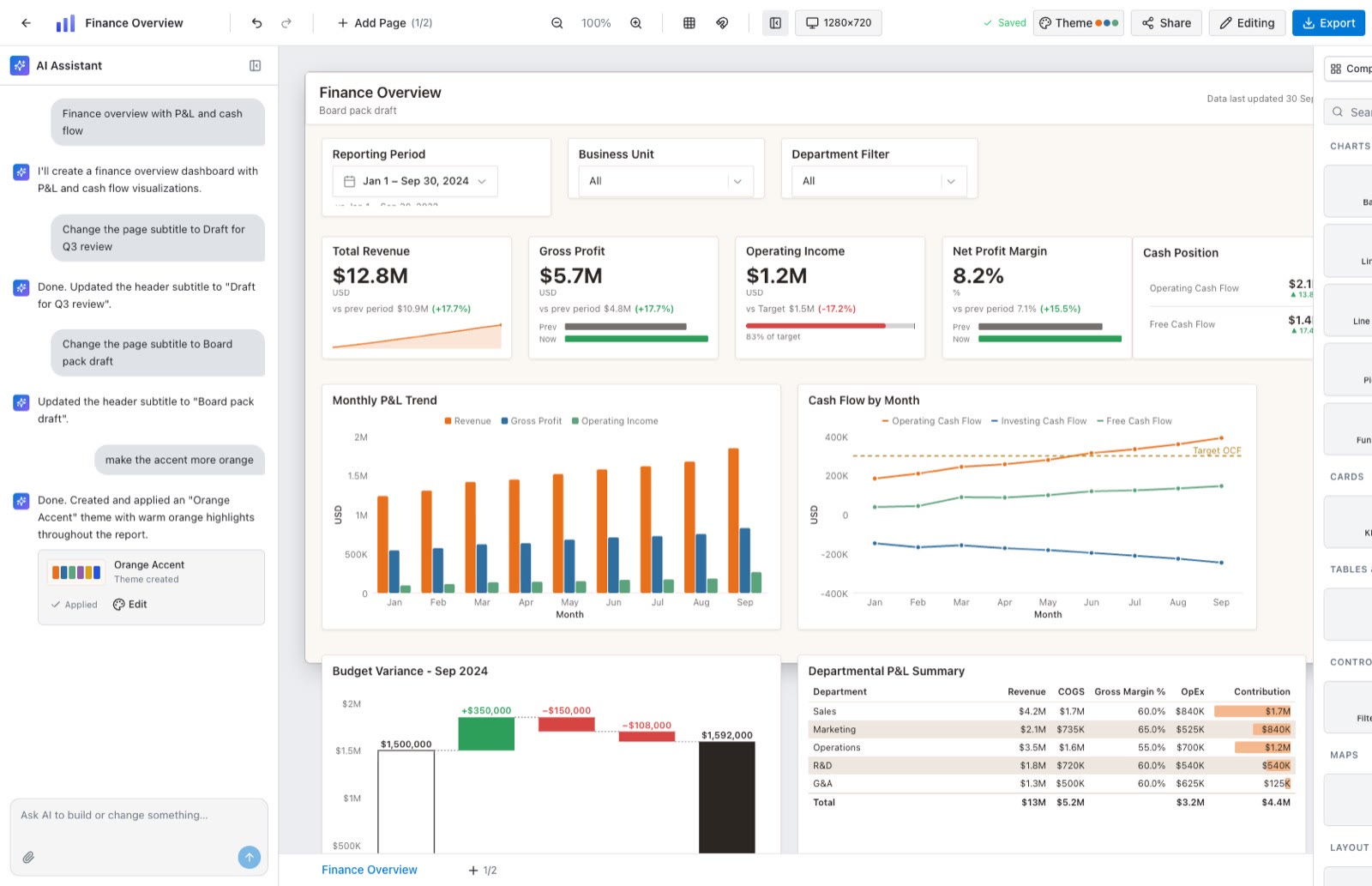
AI answers with a result card. It shows Apply (or Applied, once the theme is in use) and Edit to fine-tune it in the panel. AI edits a theme in place, so the change shows up in every report that uses it.
Want the full story? Read the deep dive on the Theme builder.